


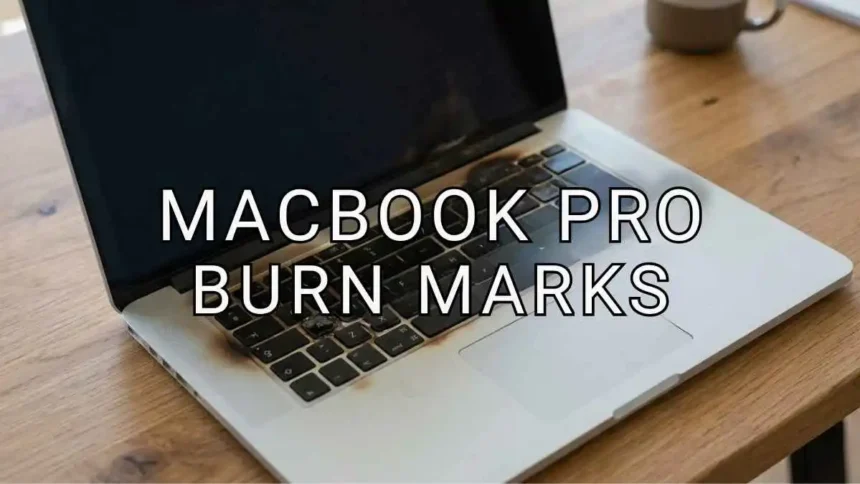
MacBook Pro Screen Burn Marks are faint, ghost-like impressions that appear on the screen after static elements such as the Dock, menu bar, or toolbars remain displayed for extended periods. These marks are typically caused by temporary image persistence in LCD or Mini-LED displays, where pixels retain a residual image for a short time instead of refreshing instantly. Unlike permanent burn-in seen in OLED screens, this issue is usually reversible and fades with proper usage. Many users initially assume their display is damaged, but in most cases, it is a minor and temporary condition. By understanding its causes and adopting simple preventive habits, users can protect screen quality and ensure long-term display performance.
- Understanding MacBook Pro Screen Burn Marks: Is it Permanent?
- What Are the Common Causes of Ghosting and Image Persistence on macOS?
- Physical Marks vs. Digital Ghosting: Identifying the Difference
- Step-by-Step: How to Fix Temporary Screen Ghosting
- Adjusting macOS Settings to Prevent Future Screen Retention
- How Do Display Brightness and Thermal Management Affect Screen Burn Marks?
- Dealing with Keyboard “Staingate” and Coating Wear
- When to Visit the Genius Bar: Signs of Hardware Failure
- What Are MacBook Pro Warranty Coverage and Screen Replacement Costs?
- FAQs
- Final Thoughts
Understanding MacBook Pro Screen Burn Marks: Is it Permanent?
The first thing to understand is that true “burn-in” is a characteristic of OLED screens, where organic compounds permanently degrade. MacBooks, however, primarily use LCD (Liquid Crystal Display) and Mini-LED technology.
What you are likely seeing is Image Persistence. This occurs when liquid crystals “get stuck” in a specific state after being charged for a long period to display a static image. While it looks like a permanent stain, it is usually a temporary electrical state that can be reversed.
What Are the Common Causes of Ghosting and Image Persistence on macOS?
MacOS is a “static-heavy” operating system. Think about your workflow: the semi-transparent Menu Bar at the top and the Dock at the bottom stay in the same position for hours.
- High Brightness: Running your MacBook at 100% brightness (especially in HDR mode) increases the voltage required by pixels, making them more likely to retain an image.
- Static UI Elements: Icons, window borders, and even the “Close/Minimize” buttons are prime candidates for ghosting.
- Extreme Heat: High internal temperatures can affect the physical properties of the liquid crystal layer, accelerating the onset of ghosting.
Physical Marks vs. Digital Ghosting: Identifying the Difference
| Feature | Physical Marks | Digital Ghosting (Image Persistence) |
| Cause | Pressure from the keyboard, debris, or wear on the anti-reflective coating. | Static images are displayed for long periods. |
| Permanence | Often permanent or long-lasting | Usually temporary and reversible |
| Appearance | Smudges, patches, or coating wear are visible at all times | Faint ghost-like images that fade over time |
| Behavior | Does not change with screen content | Changes or disappears with dynamic content |
| Fixability | Requires cleaning, repair, or screen replacement | Can be fixed by screen rest or by displaying moving content |
Step-by-Step: How to Fix Temporary Screen Ghosting
If you have confirmed it is digital persistence, try these “pixel-massaging” techniques:
- The All-White Screen Method: Set your desktop wallpaper to a solid, pure white image. Turn the brightness to a comfortable medium-high level and leave it on for 2–4 hours. This resets the electrical charge across all pixels simultaneously.
- The Screen Saver Reset: Apple’s built-in “Flurry” or “Drift” screen savers are excellent because they move across every pixel. Let this run for an hour.
- Dynamic Video Loops: Search for “LCD Pixel Refresher” on YouTube. These videos cycle through primary colors rapidly to “break” the persistence of stuck crystals.
Adjusting macOS Settings to Prevent Future Screen Retention
Prevention is the best strategy for long-term health.
- Auto-Hide the Dock: Go to System Settings > Desktop & Dock and toggle “Automatically hide and show the Dock.” This ensures the pixels at the bottom are constantly changing.
- Menu Bar Management: Use apps like Bartender or Hidden Bar to minimize the number of static icons in your top bar.
- Lower the Brightness: Unless you are color-grading or in direct sunlight, try to keep your brightness around 60–70%.
How Do Display Brightness and Thermal Management Affect Screen Burn Marks?
Display brightness and thermal management play a significant role in preventing MacBook Pro Screen Burn Marks. High brightness increases pixel stress, making image persistence more likely, especially during long usage sessions. Similarly, excessive heat from intensive tasks like video editing or gaming can affect display performance and accelerate ghosting effects. Proper cooling and moderate brightness help maintain pixel health and reduce the chances of temporary image retention. Managing these factors helps ensure longer screen longevity and reduces the risk of faint, ghost-like impressions appearing on the display over time.
Dealing with Keyboard “Staingate” and Coating Wear
To prevent physical marks:
- Clean Regularly: Use a 70% isopropyl alcohol wipe or a damp microfiber cloth to remove oils from the keyboard.
- Thin Protectors: Avoid thick silicone keyboard covers, as they add pressure to the screen when the lid is closed.
- The Paper Trick: Placing a thin sheet of specialized microfiber cloth between the keyboard and screen when traveling can prevent “key-marks.”
When to Visit the Genius Bar: Signs of Hardware Failure
Software fixes won’t solve everything. You should seek professional help if:
- The marks are visible even when the MacBook is powered off.
- There are bright “white spots” (backlight bleed).
- The “burn” is actually a vertical or horizontal line (indicative of a T-CON board or flex cable failure).
What Are MacBook Pro Warranty Coverage and Screen Replacement Costs?
MacBook Pro Screen Burn Marks warranty typically covers manufacturing defects for one year, but it does not include accidental damage or issues like screen burn caused by user habits. To get broader protection, many users opt for AppleCare+, which extends coverage and reduces repair expenses significantly. Without AppleCare+, screen replacement costs can be quite high, often ranging from several hundred to over a thousand dollars, depending on the model and repair type. Authorized service centers provide reliable repairs with genuine parts, while third-party services may offer lower prices but vary in quality and warranty coverage.
FAQs
1. How can I prevent burn marks on my MacBook Pro?
Avoid leaving static images for long periods, enable screen savers, reduce brightness, and keep your device cool and clean.
2. Is this issue covered under warranty?
Standard warranty covers manufacturing defects only. Physical damage or user-caused issues are usually not covered unless you have AppleCare+.
3. Should I be worried if I notice these marks?
Not usually. In most cases, they are harmless and temporary. However, if they persist or worsen, it’s best to consult an authorized service provider.
Final Thoughts
MacBook Pro screen burn marks can be concerning at first, but in most situations, they are temporary and manageable. From my perspective, consistent screen caresuch as reducing brightness, avoiding static images, and giving the display regular breaks, plays a key role in preventing these issues. Understanding the difference between temporary ghosting and permanent damage helps reduce unnecessary worry. With simple habits and mindful usage, you can maintain a clear display and ensure your MacBook Pro continues to perform and look its best over time.