


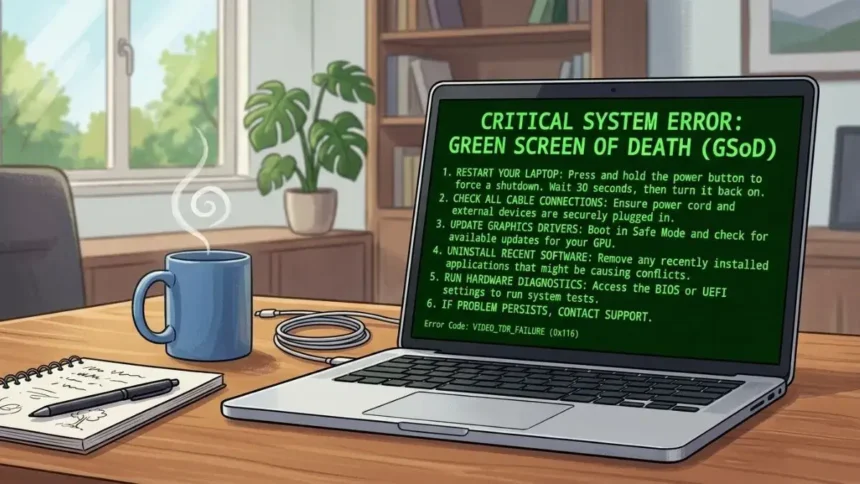
A laptop screen that turns green does not always need a replacement. The same symptom can come from a corrupted graphics driver, an incorrect color profile, a damaged LCD cable, or a failing display panel. The challenge is identifying which component is responsible before spending money on a repair that may not solve the problem.
The most useful clue is not simply how green the screen looks. It is whether the green appears in screenshots and whether an external monitor displays the same fault. These observations can narrow the possibilities far more effectively than trying random Windows fixes.
Why Is Your Laptop Screen Green?
Start by matching the symptom to its likely cause. A uniform green tint, colored lines, and a green crash screen are different problems and should not be treated as interchangeable.
| What you see | Likely explanations | Best first test |
| Entire screen has a green tint | Color settings, graphics driver, display hardware | Check color settings and take a screenshot |
| Thin green vertical or horizontal lines | LCD panel, display cable, graphics hardware | Check an external monitor and startup display |
| Green flickering when moving the lid | Display cable or connector damage | Keep the lid still and arrange inspection |
| Green artifacts during gaming | Graphics driver, GPU instability, overheating | Check temperatures and driver history |
| Green display after an update | Driver conflict or changed display configuration | Roll back the recent change |
| Green screen with a sad face or stop code | Windows system crash | Record the error and investigate system stability |
These are diagnostic clues, not definitive diagnoses. For example, a faulty GPU can affect both internal and external displays, but software problems can do the same. The next step is to isolate the display path from the operating system.
How to Fix Laptop Green Screen: Start with These Diagnostic Tests
1. Use the Screenshot Test to Separate Software from Display Hardware
When the screen turns green, press Windows + PrtScn or use the Snipping Tool to capture the display. Transfer the image to a phone or another computer and inspect its colors there.
If the screenshot also looks green on another device, investigate software color processing, graphics output, or the application’s rendering. If the screenshot looks normal elsewhere while the laptop panel remains green, the internal display path becomes more suspicious.
There is an important limitation: a screenshot does not record the physical light emitted by the LCD. It cannot directly reveal a defective panel, backlight, or display cable, and some graphics-processing faults may not appear in the captured image. Treat this test as a clue rather than proof.
2. Connect an External Monitor
Connect the laptop to a well-working monitor or television using HDMI or a supported USB-C video connection. Select the correct input on the external display and compare the images while the same content is visible on both screens.
- External display normal, laptop screen green: Focus on the internal panel, display cable, connector, or laptop-specific display settings.
- Both displays green: Investigate the graphics driver, GPU, operating system, and color-processing software.
- Green lines on both displays: Graphics hardware or a software rendering problem becomes more plausible.
A normal external display does not completely rule out GPU problems, because some laptops route their internal and external displays through different graphics paths. Nevertheless, this test helps prevent unnecessary screen replacements.
3. Check the Screen Before Windows Loads
Restart the laptop and observe the manufacturer’s logo or BIOS/UEFI screen. If the same green lines appear before Windows starts, a Windows application or ordinary desktop color setting becomes a less likely explanation.
Some manufacturers also provide built-in display diagnostics. For example, supported Dell laptops can run an LCD self-test by holding D while pressing the power button. The test displays solid colors to help identify visible screen abnormalities independently of normal Windows operation.
If the fault appears during the self-test, arrange a hardware inspection. If the test looks normal, software or graphics processing remains possible, although an intermittent cable or panel fault may escape detection.
Do not change BIOS settings or flash the BIOS merely to experiment with screen colors. Neither action is a sensible first response to a green tint.
Software Fixes That Target Specific Causes
4. Restart the Graphics Driver
Press Windows + Ctrl + Shift + B. Windows attempts to reset the graphics subsystem, and the display may flash or produce a short beep.
If the green tint disappears immediately, a temporary graphics-driver problem is plausible. This shortcut does not repair physical damage, so repeated recurrence calls for further investigation rather than repeated resets.
5. Roll Back or Update the Graphics Driver
If the problem began after a Windows update, graphics driver installation, or game update, investigate that recent change first.
- Right-click Start and open Device Manager.
- Expand Display adapters.
- Open your Intel, AMD, or NVIDIA graphics device’s properties.
- Under the Driver tab, select Roll Back Driver if available.
If rollback is unavailable or the driver is outdated, check the laptop manufacturer’s support page for the exact model. Laptops with hybrid graphics may require compatible integrated and dedicated GPU drivers, so installing a random driver package can introduce further problems.
6. Correct Color Filters and Display Calibration
A green tint without lines or flickering may originate from color-processing settings. Open Settings → Accessibility → Color filters and turn the filters off. Then open Settings → System → Display and disable Night light temporarily.
If the screen still looks green, check any manufacturer display utility and custom color profile. Change one setting at a time so you can identify which change matters. Resetting every display option at once may remove the symptom without revealing its cause.
7. Check Refresh Rate and Resolution
If the display flickers or becomes unstable after connecting an external monitor, open Settings → System → Display → Advanced display. Select a refresh rate supported by the screen and restore the recommended resolution if it is changed.
This step is most relevant to flickering or configuration-related display problems. It is unlikely to repair persistent green lines caused by a damaged LCD panel, so do not keep experimenting with refresh rates when the fault is clearly physical.
When the Green Screen Is Windows Crash
A green screen with a sad face, restart message, or stop code is different from a display that simply has a green tint. On Windows Insider builds, a green crash screen can indicate a system failure, so record the stop code and note what happened immediately beforehand.
If Windows still starts, disconnect unnecessary peripherals and investigate recent driver installations or system changes. If it cannot start normally, use Windows Recovery Environment to access Startup Repair or Safe Mode. Avoid resetting Windows before backing up accessible files and considering whether the fault might be hardware related.
FAQs
1. Can a green laptop screen be fixed without replacing the display?
Yes. A driver conflict, color filter, or display configuration issue may be corrected through software. Hardware replacement is more likely when the fault persists in a supported preboot display test.
2. Why is my laptop screen green but my external monitor works?
The internal display panel, cable, or connector becomes a stronger suspect. However, different graphics paths and display settings can produce the same result, so confirm the diagnosis before buying a replacement panel.
3. Does a green screen mean my graphics card is failing?
Not necessarily. Compare the internal and external displays, inspect the startup logo, and check whether the problem began after a driver update. If both displays show artifacts, GPU or software issues deserve closer investigation.
4. Can overheating cause a green screen?
Overheating can contribute to graphics instability, especially during demanding tasks, but a green screen alone does not establish overheating as the cause. Look for recurring artifacts under load, unusually high temperatures, or thermal shutdowns before drawing that conclusion.
5. Should I reinstall Windows to fix a green screen?
Not as a first step. Test the display, check color settings, and investigate graphics drivers first. Reinstalling Windows is unlikely to help a physically damaged panel or cable and can create unnecessary data-loss risks.
Final Recommendation
The most reliable way to fix a laptop green screen is to diagnose the failure before replacing parts. Start with the screenshot and external-monitor tests, check whether the fault appears before Windows loads, and then apply the software fix that matches the evidence.
If the fault persists during a supported display self-test or changes with lid movement, prioritize hardware inspection instead of repeating software resets.